Converting my CNC Router to a USB controller
My CNC router used a parallel port interface for several years. This is how I converted it to a USB interface to use it on more modern computers.

I hadn’t been using my CNC Router very much mainly because the CNC foam cutter had kept me very busy. My 3d printer is used for many parts that I would have made with the CNC router. I even considered selling it, but I knew I would regret it, so it’s been idle for a couple of years. So it was time to get it going again
The old parallel port computers I had were showing signs of failure and took a lot of space so that was my main reason for the conversion.
Who’s this conversion for?
Although this conversion is for my CNC router it will work equally as well for CNC machines using the old parallel port. Such as milling machines, laser cutters and foam cutters.
So if your old computer has just died then this conversion may be just what you are looking for. This isn’t the only way to do a conversion but one I feel should suit most hobbyists.
Mach3, LinuxCNC or GRBL based ?
I had to decide which software to use because this impacts your hardware choice.
LinuxCNC won’t work with USB so that ruled it out. This is a shame because it’s very good. But I would have to dedicate a computer to it as well.
Mach3 can work with USB using a couple of options on more modern computers. Check my article here for a full breakdown. But even though I have a license I decided not to use Mach3 for now.
GRBL is the option I’ve chosen. The reason for that is I use a version of it on my CNC Foam Cutter with an MKS Gen L V1.0 board. It has external driver connections and can run at 24 volts. With this, I’ll be using the OpenBuilds Control software but there are other options such as UGS(Universal G-Code Sender), CNC js and GRBL-Panel.
Firmware
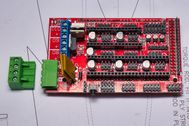
The MKS Gen L V1.0 board is an Arduino Mega 2560 and a RAMPS board in one unit. This makes a neat setup and there are several 3d printed cases for it on Thingiverse. The firmware I’ll be using is the GRBL-Mega-5X by Gauthier Brière. I’ve just amended it to use 3 axes and set some defaults for the OX CNC router. You can download the firmware here and use XLoader to install it.

MKS GEN L V1.0 Firmware 3 Axis CNC Router 678.96 KB 1477 downloads
This is the firmware I use on my OX CNC router with the MKS Gen L V1.0 board for…My OX CNC router is the 500x750mm version so the settings are based on this. It has a cutting area of 310x520mm, which isn’t that big but I have limited space.


External Stepper Drivers
I’m going to use the TB6560 drivers which are the same type as I used on my old parallel port controller. These worked well on LinuxCNC and Mach3.

The TB6560 drives can handle up to 3 Amps. Make sure your drivers can deliver the current required for your stepper motors. I’ve used it like this on my old setup without any issues.
Driver Settings
My NEMA23 motors are rated at 2.8 Amps so I set the current on the DIP switches to
2.6A the next setting was 3A.
The other switches are set to 1/8 micro-stepping and decay to 25% and stop current to 50% I’ve used these settings on my old foam cutter with the parallel port and it worked perfectly for many years.
Please check your documentation if you are using a different driver. These settings worked for my drivers but you may need to check your operation and adjust to suit.
Power Supply
I built my original power supply from 2 computers 12-volt power supplies wired in series but this can be a little dangerous if you are not careful and was very bulky.


Now, 24-volt PSUs are quite cheap and less bulky. So I have chosen a 24V 350Watt.
Y-Axis with 2 stepper motors
My OX CNC router uses 2 NEMA23 motors for the Y axis so I will need to slave/clone them together. To keep this simple, the step and direction signal wires coming from the MKS board Y-axis are connected to the Y1 stepper and the Y2 stepper drivers.

The Y2 stepper motor needs to turn in the opposite direction to the Y1 stepper. All we need to do is reverse one of the pairs on the slave Y2 stepper motor.
Software
There are several options for the controller software, and several of them run on Mac and Linux computers. Probably the most popular for GRBL-based systems is UGS(universal G-code Sender). I’ve chosen to use the OpenBuild Control for now as I just prefer the look of it. Time will tell if this is a good decision. Both of these are available for Windows, Mac and Linux
Bench Test
It’s a good idea to test the electronics before completely installing them on your machine. If you have any issues you can contact the seller quickly.
Check the video here where I show how to do that.

Wiring the stepper motors
I purchased some drag chains for all the wires to keep them from being trapped in the motion and make a neater setup.
I used 24 AWG Ethernet cables to connect my motors. These have 8 wires, which I paired to give me 4 connections. As my motors are rated at 2.8 amps, and the drivers set to 2.6 amps. I used this on my old foam cutter and the router before conversion, and it has always worked without any issues.
Checking the Axis Direction
Once everything is installed and connected to your machine, it’s time to run some checks. I’m using OpenBuilds Control, but you should be able to do this with the other popular GRBL controllers.
The thing to check is the axis direction. Make sure Homing is disabled in settings with $22 is disabled or in other software $22=0. We set this up later.
Before you try jogging, move each axis by hand very slowly to the middle of each axis. Moving slowly reduces any back EMF to the drivers, which could damage them.
If the axis goes in the wrong direction, we won’t run up against the stops. On the Openbuilds Control software. Set the incremental step distance to 1mm and jog the axis you are testing. If you are using inches, then set it to 0.01″.

The Z-axis should move down when you jog Z- and up with Z+.
Reversing an Axis
If you find the axis goes in the wrong direction, then it’s quite easy to change on the settings page. Just toggle the $3 axis slider for the relevant axis.

Axis Calibration
Once we have confirmed all the axes are going in the right direction, the next step is to make sure the axis moves the correct distance. So if a g-code like G0 X 20 is received, then the axis moves 20.
OpenBuilds Control makes this very easy on the settings page. Scroll down to $100-$102 and click the Steps button. From the pop-out, you can select your setting, and it will calculate the correct steps/mm and apply them. Very easy, and after checking, it was spot on.

To check this is correct place a rule on the machine and jog the Z-axis down so it’s almost touching. You can also do this with the router in place and a small bit installed. Align the router bit as shown below to test the Y-axis.

Then zero the Y-axis and type G0 Y100 in the Send Dialogue box and check the axis moves 100mm distance.

If you find the distance is incorrect then select “Wizards & Tools” and then the axis that needs correcting. Follow the wizard instructions and you will get a new value for steps/mm. I show this in the video.

Homing
You will need to install a switch or sensor on each axis to enable homing. On the X and Y axis, you can, if you want, install switches at the maximum travel of the axes. I choose not to do this and use soft limits instead. This means we only need 3 switches, which reduces wiring.
I found on the old setup where I had used switches for maximum travel, occasionally I had broken connections. Mostly due to moving the machine around the workshop and catching the wires. Not once did I trigger the maximum travel switches in operation. I like to keep things as simple as possible, less to go wrong.
Z-axis limit switch
The OX CNC Z-axis design makes it quite difficult to locate a switch. On the newer machines, this is much easier. After I tried to locate a switch at the bottom of the Z-axis with poor adjustment, I decided to design my own.

The microswitch is located by 2 pins on the bracket with a small drop of hot glue to secure it.
Wiring the switches
It is advisable to use screened cable for your switches to reduce and EMF from the stepper motors, causing false triggers. If, after setting everything up and it doesn’t work as expected make sure you screen your cables to the switches.
Testing switch operation
Once you have your switches wired, go to the troubleshooting tab and trigger each switch by hand to make sure the software shows it triggered ON. As shown below

Homing settings
These are the settings I have for my machine. You may need to adjust $23 for homing direction and $130-132 to suit your machine travel. $27 may need changing to suit your machine.
| Setting | Description |
|---|---|
| $20=1 | Soft limits enable |
| $21=1 | Hard limits enable |
| $22=1 | Homing cycle enable |
| $23=3 | Homing direction invert, mask |
| $130=315 | X-axis maximum travel, millimetres |
| $131=500 | Y-axis maximum travel, millimetres |
| $132=50 | Z-axis maximum travel, millimetres |
| Defaults | The setting below are defaults that I haven’t changed |
| $5=0 | Invert limit pins, boolean |
| $24=100.000 | Homing locate feed rate, mm/min |
| $25=500.000 | Homing search seek rate, mm/min |
| $26=250 | Homing switch debounce delay, milliseconds |
| $27=5 | Homing switch pull-off distance, millimeters |
Testing Homing
Before you test homing, make sure your X, Y and Z axes all work in the correct direction first. Move each axis slowly by hand away from the end stops of the machine. If when we test homing, the axis goes in the wrong direction, then it won’t bang up against the stop. You will have time to press the abort icon.
If any axis goes in the wrong direction, you can change it easily on the settings page with $23.
Troubleshooting
If you are getting problems with homing and you have used screened cables, try increasing $26 the debounce setting. This can help switches or sensor triggers with a cleaner signal.
Testing the CNC router
To test the router we need some g-code and probably the simplest option is to use the OpenBuilds free CAM software which runs online here https://cam.openbuilds.com/
There is a sample file already on the site you can use as well.

This will upload directly into the controller if your controller computer has internet access. If not you can save the g-code and upload it.
Final Thoughts
Since this conversion, I’ve upgraded the CNC router to a bigger frame and a 32-bit controller. Details are here
Check my YouTube Playlist, which includes several videos related to this conversion