GRBL HotWire for Arduino Mega2560 CNC Foam Cutters

The CNC foam cutter software and firmware have been updated to Grbl HotWire with new and requested features. It now supports grblHAL 32-bit controller boards. The axis letters have been changed to XYZA.
Follow this post to Grbl HotWire for CNC Foam Cutters for the latest features. The rest of this post explains how to configure the 8-bit Arduino Mega 2560-based boards
Controller Software for 4-axis CNC Foam Cutters
This is the GRBL HotWire firmware and software for USB Foam Cutter available on this website. The latest software works for both 8 and 32-bit. Initially, it was based onsoftware and firmware adapted by Daniel Rascio from GRBL-Panel and GRBL 0.8c2 but since then I have modified it extensively to use GRBL 1.2. The latest 8-bit firmware is still based on version 1.2 but axes letters are now XYZA and not XYZU. Daniel did a fine job and many builders have used it with great success.
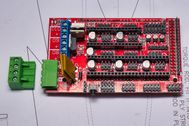
It requires an Arduino Mega 2560 with a RAMPS or an MKS GEN L. The list of parts is here if you’d like to build one.
The full build guides are here


The software will also run on the MKS Gen L board. I’ve made a separate post here if you wish to use that board.
GRBL HotWire 8-bit Firmware
The firmware was updated in April 2026 and is based on a fork of grbl-mega-5x 1.2, bringing several improvements.
A single firmware build is now used across all supported 8-bit boards. As part of this update, only the minimum (min) limit input pins are used for each axis.
If you are using two limit switches per axis (for example, one for homing and one for maximum travel), both switches must be wired in series and connected to the corresponding min limit input. All the settings for foam cutting can be set through the settings panel.
Driver location for the latest software and firmware
The driver module and jumpers need to be configured as below.


Installing the new software and firmware.
First, we install the pre-complied firmware on the Arduino or MKS using Xloader I’ve created a separate posting for this. Easy Way to Upload CNC Foam Cutter Firmware
Once you have done that then follow on from Installing Software.
Installing the GRBL HotWire Software
I’ve only tested this software on Windows 10 and 11, I don’t have older versions anymore but several users have confirmed it works on Windows 7
Download the software from here

GRBL Hot Wire Firmware and Software V2.51 1.77 MB 10173 downloads
This is the latest software and firmware for the CNC Foam Cutter version v2.51,…Unzip the download and click setup.exe to run it. It should open the new application if all is well. If you have problems I’ll do my best to help but always run lots of tests before committing to cut any foam.
Configuration
After installing the software you need to configure the settings. The default settings will set the foam cutter up as the build on this website. But before you start testing any movement move each axis away from the physical stops of the machine. If an axis goes in the wrong direction it could ruin a flexible coupler, trust me I’ve done it a few times! Disconnect the motors first because turning the motors by hand induces a current and voltage in the wire, damaging the controller.

To change any setting click on the settings tab and you’ll see a table with all the settings. Each of the $ settings represents a value we can change on the Arduino. Plugin the USB, select Connect on the Interface page, go to the Setting tab, and ensure $22 is set to zero. This disables homing. Even if you are going to use homing we need to disable this first and get the axis directions correct. Do a Disconnect and Reconnect to make sure the change is taken. The Homing button should be greyed out.
A full list can be found here on the GitHub page. Make sure you are connected to the Arduino before trying to change a setting and press the return key otherwise the settings will not apply.
Default Settings – No Homing or Limit Switches
| Setting | Value | Description | Notes |
|---|---|---|---|
| $0 | 10 | Step pulse, microseconds | |
| $1 | 255 | Step idle delay, milliseconds | |
| $2 | 0 | Step port invert, mask | |
| $3 | 6 | Direction port invert, mask | |
| $4 | 0 | Step enable invert, boolean | |
| $5 | 0 | Limit pins invert, boolean | |
| $6 | 0 | Probe pin invert, boolean | |
| $10 | 3 | Status report, mask | |
| $11 | 0.02 | Junction deviation, mm | |
| $12 | 0.002 | Urc tolerance, mm | |
| $13 | 0 | Report inches, boolean | |
| $20 | 0 | Soft limits, boolean | Don’t enable only use when homing otherwise, this will cause a jogging error |
| $21 | 0 | Hard limits, boolean | |
| $22 | 0 | Homing cycle, boolean | |
| $23 | 1 | Homing dir invert, mask | |
| $24 | 200 | Homing feed, mm/min | |
| $25 | 100 | Homing seek, mm/min | |
| $26 | 250 | Homing debounce, milliseconds | |
| $27 | 5 | Homing pull-off, mm | |
| $30 | 1000 | Max spindle speed, RPM | |
| $31 | 0 | Min spindle speed, RPM | |
| $32 | 0 | Laser mode, boolean | |
| $100 | 1066 | Axis 1 (X) steps/unit (mm or deg) | |
| $101 | 1066 | Axis 2 (Y) steps/unit | |
| $102 | 1066 | Axis 3 (Z) steps/unit | |
| $103 | 1066 | Axis 4 (A) steps/unit | |
| $110 | 400 | Axis 1 (X) Max rate, unit/min | |
| $111 | 400 | Axis 2 (Y) Max rate, unit/min | |
| $112 | 400 | Axis 3 (Z) Max rate, unit/min | |
| $113 | 400 | Axis 4 (A) Max rate, unit/min | |
| $120 | 16 | Axis 1 (X) Acceleration, unit/sec^2 | |
| $121 | 16 | Axis 2 (Y) Acceleration, unit/sec^2 | |
| $122 | 16 | Axis 3 (Z) Acceleration, unit/sec^2 | |
| $123 | 16 | Axis 4 (A) Acceleration, unit/sec^2 | |
| $130 | 0 | Axis 1 (X) Max travel, unit | Don’t leave at zero. Set to your maximum travel |
| $131 | 0 | Axis 2 (Y) Max travel, unit | Don’t leave at zero. Set to your maximum travel |
| $132 | 0 | Axis 3 (Z) Max travel, unit | Don’t leave at zero. Set to your maximum travel |
| $133 | 0 | Axis 4 (A) Max travel, unit | Don’t leave at zero. Set to your maximum travel |
Checking Axis direction
If an axis goes in the wrong direction use the Inver Axis Direction toggle on the settings page. Make sure you disconnect and reconnect to the controller for the settings to take effect.

Steps/MM
$100-103 are the values for each axis in steps per millimetre. The default value is 1066 for 1/8 micro stepping with 10mm x 1.5mm pitch thread. If you are using different leadscrews/threaded rods then this will need recalculating. A good resource is here which has Steps per millimetre – leadscrew driven systems, calculator.
If you are having trouble getting the 10 x 1.5mm threaded rod then you can use 3/8-16 TPI and set the Steps/MM to 1007 for 1/8 micro-stepping. I’ve had a few builders in the USA that say 10 x 1.5mm threaded rods are quite expensive.
Some builders have used T8 lead screws which can come in many forms. The example below is for a T8 lead screw with a 2mm pitch. Please check the specifications as some lead screws can have multiple starts which alter the steps per mm. If you are unsure just measure how far the drive nut moves in one revolution of the lead screw and use the value in the Prusa Calculator. We can check it later in the calibration and adjust it if needed.
| Lead Screw/Threaded Rod | Steps per MM 1/8 micro-stepping |
|---|---|
| 10mm x 1.5 mm pitch Threaded Rod | 1066 |
| T8 Lead Screws 2mm pitch | 800 |
| 3/8-16 TPI Threaded Rod | 1007 |
If you are not using homing limit switches/end-stops then that should be enough to get your machine working. Do check the calibration afterwards. The new Updated Part 2 video includes the calibration checks
Homing/Limit Switches Configuration

Homing will not work unless you have the switches installed, you can’t bench-test homing
Before starting this configuration ensure you have completed the section above and have installed the GRBL HotWire Mega 5X firmware and software from this website. There are changes specific to the foam cutter. Don’t use grbl-Mega-5X version from GitHub or you will have errors.
Many problems with limit switches or end-stops can be attributed to not using screened cables or providing some form of electrical isolation. Opto switches do this but are a bit more involved as they need a separate power supply.
Limit Switches Pins on the RAMPS board
Only the MIN switches are used on microcontroller. The pins listed below with hard and soft limits enabled for maximum travel.
By default, the limit switches must be wired between to ground and the following pins on the Arduino board:
Connect the switch between Signal(S) and negative(-). The A min D49 is the signal(S) pin. You must connect the other wire from the switch to a negative(-). I just used a spare negative next to the Z min negative.
| Axis | Pin min | Soft Limit |
|---|---|---|
| (X) | D3 | $130 |
| (Y) | D14 | $131 |
| (Z) | D18 | $132 |
| (A) | D49 | $133 |


Here’s a quick summary of my settings to enable homing
Please read the full description below as well
| Setting | Value | Comment |
|---|---|---|
| $5 | 1 | NC(normally closed) |
| $22 | 1 | Enable Homing |
| $26 | 5-25 milliseconds | Debounce setting see below |
| $27 | 2-10mm | Axis pull off |
| $20 | 1 | Soft Limits (if using 4 switches. Leave at 0 if you use 8 switches) |
| $21 | 1 | Hard Limits |
| $23 | Use the latest software | Homing in the wrong direction |
| $130-$133 | Max Travel(mm) | How far each axis moves Only use with Soft Limits. If you leave at 0 axes won’t move |
Normally Closed Switches
The consensus is to wire switches as NC(normally closed) and the triggering breaks the connection. So we need to set $5 = 1, the limit switches operate in “Normally closed” (NC) mode.
Enable Homing
To enable homing the $22 setting needs to change from 0 to 1 and it’s a good idea to set $27 to a small value say 5 or 10mm. This pulls the axis off the switch after it has been triggered. If you leave it at 0 then you may get a false trigger.
Debounce
Sometimes you may need to change the $26 debounce setting. If you find you are getting strange results then increasing this value may help. I had this problem when I first used Mach3 with limit switches. Increasing this value fixed it. It’s because the switches are not triggered cleanly and this can cause problems.
Homing in the wrong direction
Use toggle the checkboxes. Make sure that each axis is going in the correct direction first.
Make sure you disconnect and reconnect to the controller for the settings to take effect.
Soft and Hard Limits

Soft and Hard Limits Explained
Using Hard Limits (1 microswitch per axis) with Soft limits is the recommended option. We use 1 switch connected to the appropriate pins, and set the maximum travel with $130-$133. This allows homing and prevents your machine from travelling beyond the limits of travel, crashing or breaking something. It works by knowing the maximum travel limits for each axis and where Grbl is in machine coordinates.
Using Hard Limits (2 microswitches per axis), we use a physical switch at the beginning and end of the axis travel.
Only use these settings if you have Homing enabled with limit switches. The switches are wired in series and connected to the appropriate pins.
I only have 4 switches and have set soft limits to the maximum travel of the vertical and horizontal axes. Less wiring, and I very rarely come anywhere near the maximum travel.
On my old machine, I had 8 switches, and I never once triggered the maximum travel switches. But I did have some connection breaks, which took some finding.
$130, $131, $132, $133 – [X, Y, Z, A] Max travel. This sets the maximum travel for each axis in mm. This is only useful if you have soft limits (and homing) enabled.
For Soft Limits using 4 switches set $20=1 and $21=1 and then $130-133 to your maximum travel. Connect as shown in the diagram below, replicate for each axis.
For Hard Limits using 8 switches, set $20=0 and $21=1 and leave $130-133 set to 0. Connect as shown in the diagram below, replicate for each axis.

That should get your homing with limit switches working. Other settings can be adjusted for speed and acceleration. The default setting in the firmware works well on my machine and is very similar to DevCNC Foam. If you need to change them, do so with caution, as trying to run too fast can cause missed steps.
Gauthier has produced a very detailed wiki page on homing and limits switches so if you are having issues not covered here, please check his wiki page https://github.com/fra589/grbl-Mega-5X/wiki/Limit-switches-and-homing
G93 Inverse Time Feed Mode
G93 feed mode is fully supported in this firmware version. It’s used to calculate the feed between each movement sent to the axes. If you have G93 enabled in your software, e.g. DevWing Foam2, then there will be a feed rate on every line starting with G1.
Grbl Hotwire does not allow feed rate changes when using G93 in your g-code it is grey out. This is because you Adjust Heat, Not Speed: If the cut isn’t looking right, it is safer to adjust your wire temperature (current) in real-time. This maintains the physical timing of the 4-axis movement while fixing the melting issues. Manually overriding this time mid-job can cause desynchronization or “jerky” carriage movements.
This mode is most useful when cutting wings or fuselages with a big difference between the root and tip.

Support for the software
I hope this version works well for you, and if you have any issues, drop me a line. Please be aware I’m not a developer and have based these extensive modifications on the good work of Gauthier Brière, Gerrit Visser and Daniel Rascio. Please use at your own risk, and please test, test and test before committing any foam.
You will probably want to generate your g-code now, so check out my post on G-code generation software here G-code generation software to make foam wings and fuselages with CNC foam cutter
Happy foam cutting


Videos explaining updates to the software
There have been a few updates since the initial release, so check the videos below to explain the software updates from the original release.


Happy foam cutting