
How to get started with a Linux CNC
LinuxCNC is free, open-source software for controlling a CNC machine. I used it to run my OpenBuilds OX router with a TB6560 controller and an old desktop PC. This guide explains that setup, from installing the software to configuring the router and cutting a first part.
My router had already been running Mach3, so I knew the machine and electronics worked. Getting LinuxCNC going meant installing it on a separate hard drive and configuring it for the same hardware. There were a few things to work through, particularly the two motors driving the Y-axis, but it worked well once configured.
About the original setup: The installation shown in my video and screenshots used LinuxCNC 2.7. I’ve kept those examples because they show how my machine was configured. For a new installation, follow the current official instructions linked below. The older screenshots don’t establish that the same configuration has been tested on a current release.
Why I tried LinuxCNC
The obvious attraction was the cost. As a hobbyist, I want to make useful parts for my RC aircraft without spending more than necessary on software.
I’d used Mach3 for several years and it worked well for me. Earlier, I’d almost managed to get LinuxCNC running on my hot-wire foam cutter, but a couple of problems sent me back to Mach3. I wasn’t as experienced with CNC then and was keen to get the machine working, so I followed a Mach3 tutorial and bought a licence.
It still bugged me that I’d got so close with LinuxCNC. Once I had more time, I decided to revisit it with the OX router.

Is LinuxCNC difficult to use?
I found the LinuxCNC screen less daunting than Mach3, although getting the machine configured takes some understanding of the hardware. The important part is knowing what your controller expects and checking the settings one stage at a time.

If you’ve mainly used Windows or a Mac, Linux may look unfamiliar at first. I worked with Linux during my IT career and finished as a Linux system administrator, so I had a head start with that side of things. Even so, the machine configuration needed some care, especially the second Y motor.
LinuxCNC itself runs on Linux. For controlling a real machine, it needs a kernel with real-time support so the timing-sensitive work can be carried out consistently. You don’t need to put that system together from scratch: the official installation images provide the operating system and the required software.
My router and controller
OpenBuilds OX router from Ooznest
I chose the 750mm by 500mm OX because I don’t have a great deal of space. My machine came from Ooznest, and I’ve written a separate OX CNC router build log if you want to see more of the mechanical build.
The router has three movement axes, X, Y and Z, but four stepper motors. There are two motors on Y, one on each side of the gantry.
TB6560 controller
I used a TB6560 four-channel all-in-one controller board. The fourth driver channel runs the second Y motor. It isn’t a separate rotary axis, even though the board is often described as a four-axis controller.
My board was reliable in this setup. That is my experience with the particular board I used, rather than a guarantee about every board sold under the TB6560 name. Check your board’s documentation, connections and timing requirements before copying any settings.
The original PC
My computer was a Dell OptiPlex GX620 with a 3GHz Pentium 4 processor, 2GB of RAM and an 80GB hard drive. It connected to the TB6560 controller through its parallel port.
Those are the details of the computer I used with the older installation. For a new installation, check the current LinuxCNC system requirements. Current PC installation images are 64-bit, and the latency test matters as well as the computer’s processor and memory.
Using another router
You may already have a complete router, such as a 6040-style machine, or be building one yourself. I considered building my own before buying the OX. The general process of installing LinuxCNC and checking the PC is useful in either case, but the controller, pin assignments, motor settings and machine travel need to match your hardware.
If your existing machine uses a USB controller supplied for another control program, check whether that exact controller is supported by LinuxCNC before planning a conversion. A suitable PC on its own doesn’t make the existing electronics compatible.
Parallel port or another interface?
This walkthrough covers my parallel-port connection. If you’re following the same route, you need a compatible parallel port and a controller that accepts its signals.
For an add-on parallel card, check Linux support and the electrical specifications against your controller’s inputs. Don’t choose a card just because it has the right connector, or assume that PCI or PCIe tells you its signal voltage.
LinuxCNC also supports other interfaces, including suitable Mesa Ethernet hardware. If you choose a different interface, follow the documentation for that board. My parallel-port pin assignments won’t be a complete configuration for it. The Mesa configuration wizard documentation explains the PnCconf route for supported Mesa hardware.
Installing LinuxCNC
Start with the official LinuxCNC downloads page and follow the maintained Getting LinuxCNC installation instructions.
Use those pages for a new installation rather than the old LinuxCNC 2.7/Wheezy image used in my original video. Installers, supported operating systems and menu screens have changed since I made it.
The broad process is:
- Choose the appropriate installation image from the official downloads page.
- Follow the instructions to write it to a USB drive. Simply copying the ISO file onto a normal USB drive won’t make it bootable.
- Boot the computer from that drive and try the live system where available.
- Check its timing performance before committing it to parallel-port machine control.
- Follow the installer instructions to install LinuxCNC and its operating system onto your chosen disk.
My original installation video
The video shows how I installed LinuxCNC, configured the router and cut a tricopter frame. It is about 45 minutes long, with sections in the YouTube description so you can find the part you need.
It shows my original LinuxCNC 2.7 setup. Use it to see the hardware and the process I followed, alongside the current written installation instructions.

Watch the original LinuxCNC router video on YouTube.
Installing on a separate disk
I used a separate hard drive so I could keep my Mach3 installation intact. The Dell has a quick-release arrangement, so swapping drives was easy. That suited me better than changing the existing Windows installation.
Back up anything you want to keep and check the target disk carefully before accepting partitioning changes. An option to use the entire disk can erase the existing operating system and files. Follow the current installation instructions for the partitioning choices rather than copying the old video’s screens without checking them.
Check the network requirements for the image you choose. The current Debian 13 installer requires an internet connection. My original habit of transferring G-code on a USB drive was a choice for running the machine, rather than a requirement to install LinuxCNC without networking.
Checking the PC with a latency test
For my parallel-port setup, the PC generates the step pulses that move the motors. It needs to do that consistently. A fast processor doesn’t necessarily mean a computer will be good at this job, so run a latency test before spending time on the machine configuration.
Follow the official LinuxCNC latency-testing instructions. During the test, give the computer some work to do: move windows around, copy files and use the graphics. Let it run long enough to catch occasional spikes. Don’t run the LinuxCNC machine-control application at the same time as the standalone latency test.
For software stepping, record the maximum jitter of the base thread. My original result was 41,801 nanoseconds, or about 41.8 microseconds. Use your own measured result when StepConf asks for it.

There isn’t one jitter figure that guarantees every router will work at every speed. More jitter limits the step rate you can reliably achieve. Driver timing, microstepping and the machine’s mechanics matter too. Use the official guidance to interpret your readings rather than treating my result as a pass mark.
Hardware-generated stepping, such as with supported Mesa boards, has different timing requirements from this parallel-port arrangement.
StepConf for my TB6560 controller
StepConf creates LinuxCNC configurations for parallel-port machines using step and direction signals. The current StepConf documentation explains the settings and the timing information you need from your driver specifications.
The following screenshots show my original LinuxCNC 2.7 installation and wiring. Check every value against your machine before using it. The axis settings depend on your motors, gearing, microstepping and travel, so they aren’t universal OX or TB6560 defaults.
Create the configuration
In my installation, I opened the StepConf wizard from the CNC menu and created a new configuration.

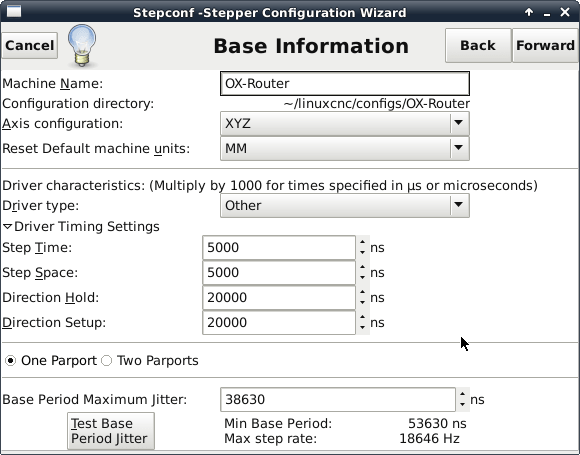
Choose a useful machine name, check the units and enter your own latency-test result in the Base Period Maximum Jitter field. Use the timing specifications for your actual controller and drivers.
Parallel-port pins and the two Y motors
This screen took a few tries to get right. The OX has two motors driving Y, so I used two channels of the TB6560 board for that axis.
In my original configuration, the Y step and direction signals went to two sets of pins, with one direction output inverted. My limit and home switches were wired in series to pin 10. These details describe my wiring; check your own connections before entering the same assignments.

On this original setup, the StepConf Y-axis test didn’t drive both motors. Don’t use that test on a coupled gantry if it moves only one side.
While working out the directions, I slackened the belts so I could check that both motors turned as intended. Once I was happy with the directions, I re-tensioned them. That describes how I checked my machine, rather than a setting to copy into a different configuration.
Duplicating the Y outputs is different from configuring two independently controlled Y joints. If you want independent homing or automatic gantry squaring, use the current kinematics and homing documentation. That needs a configuration and switch arrangement suited to the machine.
X-axis settings
The screenshot below records the X-axis settings I used. In the original setup, I could use the wizard’s Test button for this single-motor axis.

Y-axis settings
Here are the original Y-axis settings. Keep the dual-motor warning above in mind: the wizard’s test did not drive both Y motors in this configuration.

Z-axis settings
The Z-axis configuration is shown below. As with the other axes, check the scale, direction and available travel against your own machine.

Save the configuration
I completed the wizard and used the desktop launcher it created to start LinuxCNC with the router configuration.

Keep a backup once you have a working configuration. StepConf can overwrite manual changes to the main INI and HAL files when you modify a configuration through the wizard.
Testing the Y-axis with both motors
With the configuration loaded in LinuxCNC, I checked that both Y motors moved together and in the correct directions. In the original interface, I used the power control and the up and down cursor keys to jog Y.
Start with small, slow movements and check how your installed version handles jogging and homing. Both sides of the gantry need to move together without twisting it. Stop if one side fails to move or the motion is uneven.
The Y-axis test at 26 minutes 17 seconds in my video shows the original machine moving and lets you hear the motors. Once the movement is correct, check that a commanded distance matches the distance travelled before trying a cut.
Cutting the first CNC part
The first example in my video was a tricopter frame. After the installation and configuration work, it was good to see the router making something useful.
I’ve kept the original TriCopter Frame G-code download for LinuxCNC if you want to examine the file or use it as a starting point. The original example used a 3mm cutter and 3mm or 1/8-inch LitePly.
Before running it on your machine, check the units, work origin, cutting depths, feed rates, spindle settings and available travel. Preview the toolpath and do a clearance run above the material before cutting. The file was made for my setup, so don’t assume it will suit a different router without checking it.
Using LinuxCNC for a foam cutter
LinuxCNC also worked with my hot-wire foam cutter. The PC installation and latency checks are useful background for that machine too, but its motion configuration differs from the three-axis router shown here.
For the foam-cutting setup, see my LinuxCNC foam-wing software article. Use the instructions for the machine you’re building rather than transferring the OX axis configuration to a foam cutter.
What I changed later
In 2021, I converted my OX router to a USB-based controller because my old computers were showing signs of failure. That conversion used different control hardware and software. It wasn’t a change from LinuxCNC’s parallel-port connection to an ordinary USB adapter.
The details are in Converting my CNC router to USB.
LinuxCNC worked well for me on the original hardware. If you want to follow a similar route, start with the current installation instructions, check the PC’s timing and work through the configuration against your actual wiring. Keep a backup of the working setup so you have something reliable to return to when you make changes.
